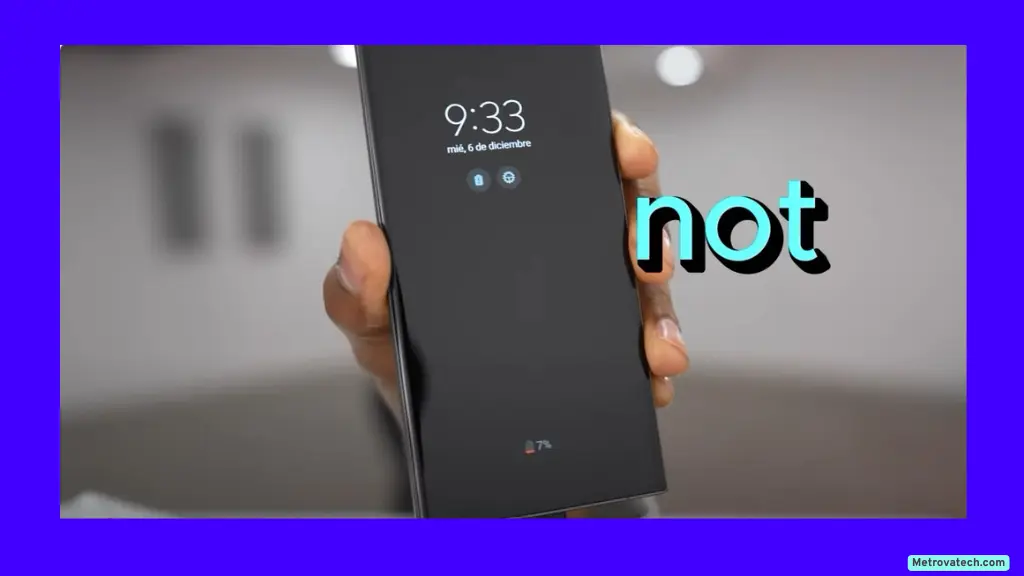
Suddenly seeing your Samsung phone’s battery percentage stuck at 100%, drop by 10% in a blink, or refuse to move at all? This is frustrating, even alarming. You want to trust your phone to get through the day, but now you’re unsure how much battery you really have left.
The good news: most battery reading glitches can be fixed with a few simple steps you can do at home. This guide will walk you through easy, risk-free ways to get your battery percentage back on track—no tech skills needed. I’ll also explain when it may be time to get a pro’s help if the issue doesn’t go away.
Why Your Samsung Battery Percentage Gets Stuck or Jumps Around
Imagine your battery meter like the fuel gauge in a car. Sometimes, the gauge gets stuck or jumps around because the sensor inside isn’t getting the right signal. On phones, this can happen for several reasons:
- Calibration errors: Over time, your phone’s battery software can lose track of the real battery level.
- Software glitches: A bug in the system, or a stuck background process, can throw off the percentage display.
- Battery health decline: As batteries age, their ability to hold charge and report it accurately drops.
- Aging hardware: Old sensors and worn-out parts can cause erratic readings.
If your battery percentage acts weird just once after a restart or update, it’s often a harmless glitch. If it keeps happening, or if you see things like sudden drops from 50% to 10%, that’s a sign of a deeper problem.
Accurate battery readings matter. They help you plan your day, avoid being left with a dead phone, and spot early signs your battery may need replacing.
Simple Solutions to Fix a Stuck or Jumping Battery Percentage
Try these proven steps, one at a time. Each is safe and won’t risk your data.
Restart Your Samsung Phone
A restart is like giving your phone a quick breath of fresh air. It resets background processes and can fix simple sensor errors.
How to restart:
- Hold down the power button until the restart menu appears.
- Tap “Restart.”
- Wait for your phone to power back up and check the battery percentage.
If the number updates or the issue goes away, you’ve fixed it.
Charge Fully and Calibrate Your Battery
If your phone’s battery readings are out of sync, calibration can help the software “remember” the real battery level.
To calibrate:
- Use your phone until the battery runs down and the phone shuts off by itself.
- Plug it in and charge it uninterrupted to 100%.
- Once at 100%, leave it plugged in for another hour.
- Unplug and use your phone normally.
Caution: Don’t do this often with older batteries, as deep cycling can cause extra wear. Calibration is usually only needed every few months or if you notice problems.
Calibration works because it forces the battery management software to reset its tracking and get a more accurate reading.
Check for Software Updates and Install Them
Software bugs can cause battery percentage errors. Updating your phone often includes important fixes for battery reporting.
To check for updates:
- Open Settings.
- Scroll down to Software update.
- Tap Download and install.
- Follow prompts to finish the update.
Your phone will restart. If updates were available, this could fix the issue for good.
Use Device Care or Battery Diagnostics
Samsung phones come with built-in tools to check battery health and spot errors.
How to access Device Care:
- Go to Settings.
- Tap Battery and device care.
- Tap Battery to see battery stats.
- Tap Diagnostics or Battery health (if available).
What to look for:
- If your battery health is below 85% (or worse, below 80%), readings may be unreliable.
- Look for warnings or errors about battery performance.
If you see a low health rating or repeated errors, it may be time for a battery replacement.
When to Replace Your Battery
Not all battery problems are software-related. If you spot these signs, your battery might be worn out:
- Your phone shuts off suddenly at 20-30% battery left.
- The percentage stays stuck at 0% or 100%.
- The back of the phone feels swollen or hot.
- The battery drains much faster than before.
If you notice any of these, especially swelling or overheating, stop using your phone and visit a Samsung repair center or authorized shop. Continued use with a faulty battery can be unsafe.
Pro Tips to Prevent Future Battery Percentage Problems
These habits help keep your battery and its readings healthy for the long run:
- Avoid overnight charging. Unplug when full to prevent extra stress on the battery.
- Keep your phone updated. Software updates include battery management improvements.
- Use official chargers. Off-brand chargers can damage sensors or the battery itself.
- Don’t let your phone overheat. Avoid leaving it in hot cars or direct sunlight.
- Run regular health checks. Check battery stats in Device Care every few months.
- Charge before dropping below 10%. Frequent deep discharges wear batteries out faster.
Small changes like these add up. They help your battery last longer and keep the percentage reading accurate.
Conclusion
Most battery percentage issues on Samsung phones have simple fixes. Restarting the phone, calibrating the battery, and keeping your software up to date solve many problems in minutes. Built-in diagnostics can help you spot when a battery is truly worn out and needs replacement.
If you’ve tried these steps and the problem keeps coming back, it’s safe and smart to get your battery checked by a pro. Battery replacements are common and can give your phone a second life.
Disclaimer
This guide is for informational purposes only and is not a substitute for professional repair. For persistent or severe battery problems, always contact an authorized technician or Samsung service center. Use only official apps and chargers, and never attempt repairs on a swollen or damaged battery yourself. Stay safe and keep your device healthy.
Read also.