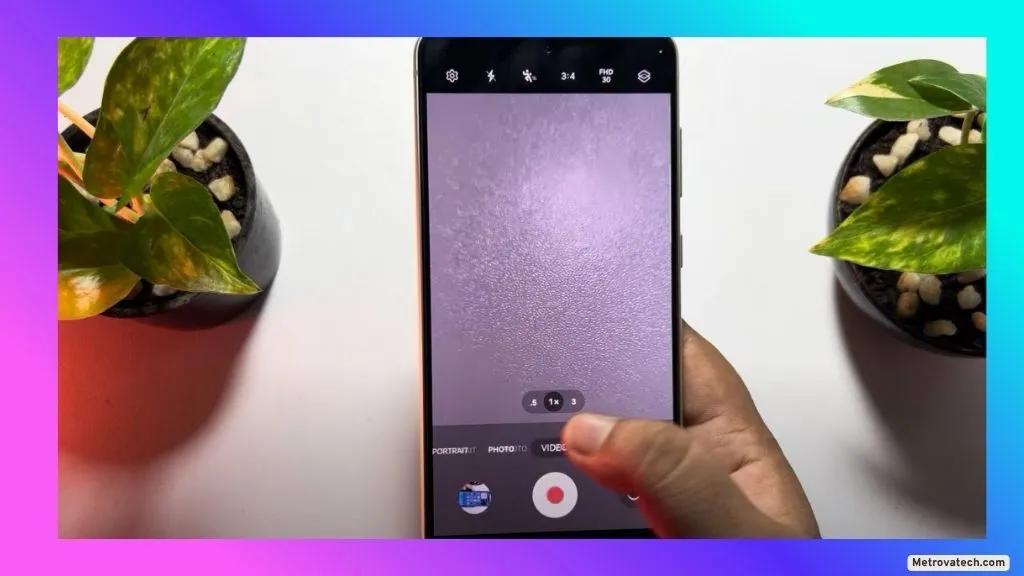
Are you tired of your Android camera freezing or taking ages to snap a photo? Nothing ruins a perfect moment like a slow, stuttering camera app. You might see the shutter button lag, video playback getting choppy, or even the whole app crashing. These problems are common, especially after months of use or a recent update. The good news is you don’t need any fancy skills or tools to fix most of these issues. This article covers simple, practical steps anyone can follow to speed up their Android camera, whether you’re using a brand new phone or an older favorite. Follow along for clear, step-by-step help. You’ll be taking crisp, lag-free photos in no time.
Why Does Your Android Camera Lag and Stutter?
Camera lag on Android usually happens when your device is overwhelmed or running low on resources. Imagine your phone as a busy kitchen: if there’s too much clutter, not enough counter space, and too many dishes piling up, it slows everything down. Your camera needs enough memory (RAM), storage, and processing power to work smoothly.
Common reasons for camera lag include:
- Too many apps running in the background (they eat up RAM and slow down everything)
- Low storage space (the camera struggles to save new photos or videos)
- High camera settings (like 4K video or HDR photos require more processing)
- Old or buggy software (outdated apps or system software can cause glitches)
- Aging hardware (older phones might not keep up with modern camera features)
You’re not alone in this. Even popular models experience lag after software updates or if they’re loaded up with too many apps and files.
How to Fix Camera Lag and Stuttering on Android: Step-by-Step Solutions
Tackling camera performance is easier if you start with the quickest fixes first. Here’s what you can do right now:
Close Background Apps and Free Up Device RAM
Every extra app running in the background is like an extra cook in the kitchen, fighting for space and resources. Too many background apps eat up RAM, leaving little room for the camera app to work quickly.
How to do it:
- Tap the Recent Apps or Overview button (usually the square icon at the bottom of your screen).
- Swipe away unused apps to close them.
- Aim to keep only the essential apps running.
You’ll often notice an instant improvement, especially if your phone hasn’t been restarted in a while.
Clear Camera App Cache
Over time, your camera app builds up cache files—temporary data that’s supposed to help it run faster. Sometimes, too much old cache actually slows things down or causes weird bugs.
How to clear the camera app cache:
- Open Settings.
- Tap Apps or Applications.
- Find and select Camera.
- Tap Storage.
- Tap Clear Cache.
You won’t lose any photos, just the temporary files the app doesn’t need anymore. This often fixes slow launch times or laggy performance.
Lower Camera Resolution and Turn Off Extra Features
High-resolution photos and videos look great but can seriously bog down your device. Features like HDR, stabilization, and motion take extra processing power, which can slow older phones to a crawl.
How to adjust settings:
- Open your camera app and tap the gear icon (Settings).
- Lower the photo and video resolution to a standard level (try 1080p video instead of 4K).
- Turn off HDR, image stabilization, motion photos, scene optimizer, or beauty mode if you don’t need them.
Each feature you disable gives your phone more room to breathe, speeding up photo capture and reducing lag.
Check Device Storage and Restart Your Phone
Your phone needs free space to save new photos and videos. If you’re near full capacity, expect performance drops. Aim for at least 10% of your total storage to be free.
Quick tips:
- Delete unused apps, old photos, or videos.
- Use Files by Google or your phone’s built-in storage manager to clear junk files.
Restarting your phone can also clear up temporary hiccups and reload system resources.
Update Your OS and Camera App
Software updates often include key fixes for bugs and speed issues in the camera app. An outdated app or system can slow everything down, especially after a big Android update.
How to update:
- Go to Settings > System > Software Update to check for Android updates.
- Visit the Google Play Store, search for your camera app, and update it if there’s a new version.
Staying current ensures you get the best performance available for your model.
Consider Resetting Camera Settings or Seeking Technical Help
If you’ve tried everything and still see lag, it might be time to reset your camera settings or get expert help. Sometimes a hidden glitch or hardware issue is to blame.
What to try:
- In the camera app, go to Settings and look for Reset settings or Restore defaults.
- If problems persist, visit your phone’s service center or contact customer support, especially if you suspect a hardware problem.
Hardware problems are rare, but can happen, especially on older or damaged phones.
Conclusion
Most camera lag and stuttering on Android can be solved with quick, safe steps. Closing background apps, clearing cache, reducing camera settings, and keeping your device updated are often enough to restore snappy performance. A few minutes of cleanup can make your camera feel like new again.
Disclaimer
This guide is for informational purposes. For severe or persistent camera lag, or suspected hardware issues, contact a professional technician. Always make changes carefully and keep your device data backed up.
Read also.