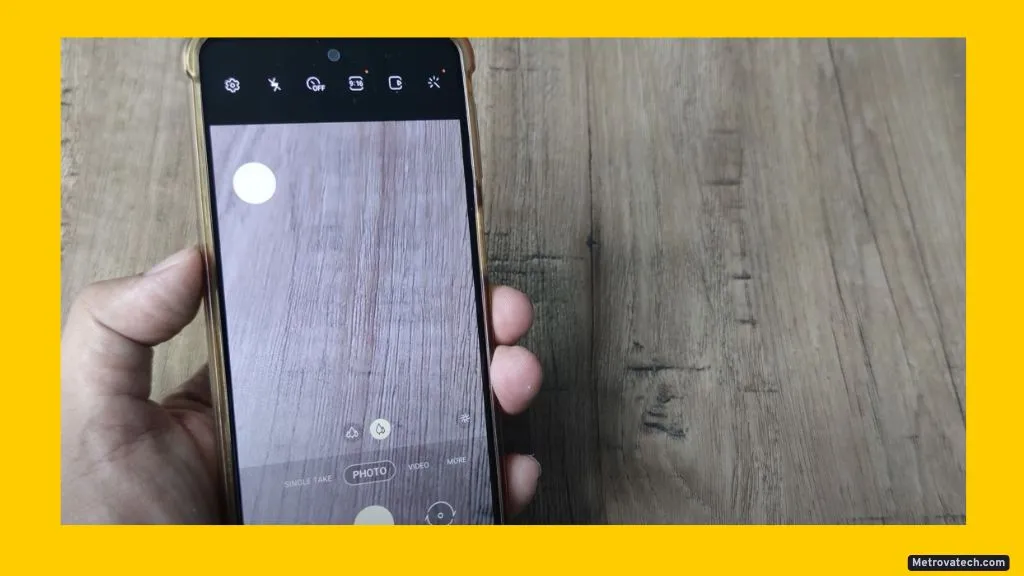
Ever tried snapping a picture in low light, only to find your camera flash refuses to cooperate? It’s frustrating, especially when your Samsung A32 or another Android phone has always handled night shots just fine. Don’t worry—camera flash issues are common, and most of them are easier to fix than you think. Here, I’ll guide you through safe, simple, and proven steps to get your flash working again. No technical background required, just a bit of patience and a few minutes of your time.
Why Your Camera Flash Might Not Be Working: Common Causes Explained
Your camera flash might seem like a simple light, but it’s actually controlled by a mix of hardware and software. When something goes wrong, it’s like having a flashlight with a stuck switch or a low battery. Here are the most common reasons you might be facing this issue:
- Software glitches: Like all apps, your camera app can crash or develop bugs. Outdated firmware or a corrupted cache might block your flash.
- Settings misconfiguration: Sometimes, the camera flash is off or set to the wrong mode (Auto, Off, etc.), or another app is using the camera in the background.
- Physical obstructions or dirt: A phone case, sticker, or even a fingerprint can block the flash or lens. Think of it like trying to use a flashlight with your hand covering the bulb.
- App conflicts: Third-party camera or flashlight apps can “hijack” the flash, making it unavailable for your main camera app.
- Low battery or overheating: Many Android phones disable the flash when battery is low or if the phone is too warm to protect the hardware.
- Hardware failure: If none of the above, it might be a blown LED or a damaged connector, especially if the phone was dropped or got wet.
These causes affect both the Samsung A32 and most Android phones, so the following fixes work for nearly everyone.
Step-by-Step Solutions to Restore Your Camera Flash
Let’s fix that stubborn flash. Each step below is safe and beginner-friendly, and you can stop once your flash starts working again.
Check and Update Your Device Software
Outdated software is a top reason for flash malfunctions. Updates often include bug fixes that solve camera and flash problems:
- Open Settings on your phone.
- Scroll to About phone or Software update.
- Tap Check for updates and follow prompts to install any available updates.
After updating, restart your phone and test the camera flash. Software improvements can restore flash functionality without further effort.
Reset Camera App Settings and Clear Cache
Corrupted app data or settings often disrupt the camera:
- Open Settings.
- Tap Apps (or Applications) then scroll to and select Camera.
- Select Storage & cache.
- Tap Clear cache. For persistent issues, also tap Clear data (note: this resets camera settings to default).
- Open the Camera app, check flash settings, and try taking a photo.
This refreshes the app and removes any stored glitches.
Review Flash Settings and Remove Physical Obstructions
Sometimes it’s as simple as a setting or a smudge:
- Check camera flash mode: Open your camera app and look for the lightning bolt icon. Set it to On or Auto.
- Inspect for obstructions: Remove any case, sticker, or lens cover that might block the flash or camera lens.
- Clean the flash and lens: Use a soft microfiber cloth for gentle cleaning. Avoid using liquids or harsh materials that might scratch the lens.
A blocked or dirty flash acts just like a covered flashlight—simple cleaning can make a world of difference.
Try a Safe Device Restart and Diagnostics
Temporary software hiccups can stop the flash:
- Restart your phone: Hold the power button, select Restart, and wait for the phone to reboot.
- Run device diagnostics: On Samsung devices, open the Samsung Members app, tap Get Help, and run the camera diagnostics. For other Android phones, check manufacturer support apps for diagnostic tools.
Restarts clear temporary glitches, while diagnostics can spot deeper hardware issues.
When To Seek Professional Help
If your flash never works, you see error messages, or there’s visible damage, it’s likely a hardware issue. Signs include:
- Flash doesn’t work in any app or even with the flashlight feature.
- Camera app gives hardware or connection errors.
- You see cracks, water damage, or the flash module is loose.
Avoid opening the phone or trying risky DIY repairs—these can cause more harm or void your warranty. Instead, take your device to an authorized service center or a trusted technician. They have the tools and expertise to safely find and fix hardware faults.
Conclusion
Most camera flash problems on the Samsung A32 and other Android devices can be fixed with a few simple steps: update your software, reset your camera app, check your settings, and clean your hardware. Regular restarts and basic diagnostics help prevent problems before they start. If these steps don’t work, don’t risk damaging your device—seek professional help. Stay patient and remember, a working flash is just a few taps away for most users.
Disclaimer: This guide is for informational purposes only. Results are not guaranteed. Severe hardware issues or persistent malfunctions should be handled by a professional technician. Always use official support resources and download apps only from the official Google Play Store.