You pull out your phone, swipe to open an app, and it just… sticks. Maybe the screen lags, animations freeze, or everything jumps around with weird glitches. If you’ve felt your patience snap when your phone stutters instead of gliding smoothly, you’re not alone. Animation freezes and screen lag are common Android issues, but the good news is you can usually fix them at home using safe, simple steps. This guide walks you through exactly how to get your phone running smoothly again, without risky tricks or confusing jargon.
Why Do Android Animations Freeze or Lag? (Understanding the Problem)
Before you fix the problem, it helps to know what’s going on behind the scenes. Android animations can freeze, lag, or glitch for a few main reasons. Most issues come down to simple settings, overloaded memory, or software bugs—things you can usually handle yourself. Sometimes, there’s a deeper hardware issue, but let’s focus on what you can fix right now.
Animation Settings and Developer Options
Android lets you tweak how fast or slow things move on your screen. Deep in your settings menu, options like “Remove animations” or “Window animation scale” control how snappy everything feels. Accidentally turning these off, or setting them too high or low, can make your phone look jumpy or cause animations to disappear completely. If your device feels weirdly fast or choppy, these settings are a good first stop.
Low Memory, Cache Build-Up, and Heavy Apps
Think of your phone’s memory like a freeway. Too many cars (apps) or too much junk (cache and leftover files) block traffic, and everything slows down. Running dozens of apps at once, letting storage fill up, or rarely cleaning out your app cache can make animations freeze or lag. Over time, even popular apps can collect corrupted data that makes them stutter.
Buggy Updates, App Glitches, and Third-Party Launchers
Sometimes, a new Android update or app version brings along unexpected bugs. Third-party launchers or widgets (like Nova Launcher or a custom weather widget) can also clash with the system, causing home screens to freeze or transitions to move in slow motion. Even custom themes or icon packs may cause conflicts on some devices. These issues are annoying, but you can often fix them with a few quick tests.
Step-by-Step Solutions: How to Stop Animations Freezing and Fix Screen Lag on Android
Ready to get your phone running smoothly again? Here’s a list of fixes, ordered from easiest to most advanced. Each one is safe for beginners and won’t harm your phone or data.
Restart and Update Your Device
A simple restart can feel like magic. It clears out stuck processes and gives your phone a fresh start. If you haven’t restarted in a while, try this first.
Next, check for updates:
- Go to Settings > System > System Update and install any available Android updates.
- Open the Google Play Store, tap your profile icon, then “Manage apps & device.” Update all apps, especially launchers or system tools.
Updating fixes known bugs and often restores smooth animations.
Check and Restore System Animation Settings
If your phone feels oddly fast, slow, or animations seem missing:
- Go to Settings > About phone.
- Tap Build number seven times to unlock Developer options (if not already enabled).
- Head back to Settings > System > Developer options.
- Find these settings:
- Window animation scale
- Transition animation scale
- Animator duration scale
- Set all three to 1x (the default value).
If you find “Remove animations” or “Reduce animations” under Accessibility settings, make sure they’re off.
Free Up Storage and Clear App Cache/Data
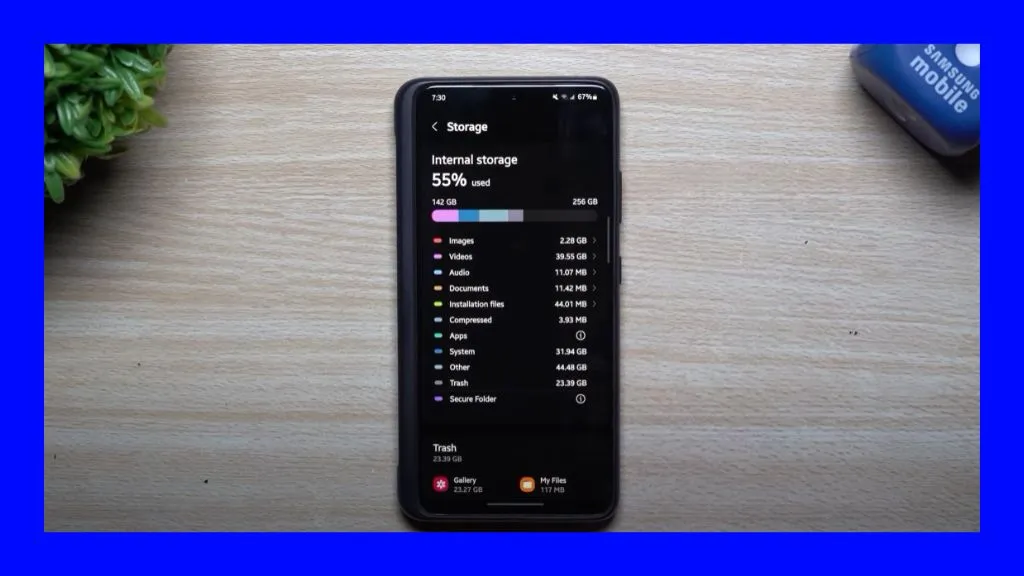
Low storage and messy app data are top reasons for lagging animations:
- Delete unused apps, large downloads, and old photos or videos.
- Open Settings > Storage to see what’s taking up space.
- Use any built-in device cleaning tool (often found in Device Care or Storage settings).
To clear app cache or data safely:
- Go to Settings > Apps.
- Tap the app that’s acting glitchy.
- Choose Storage & cache, then tap Clear cache. If problems remain, tap Clear storage/Data (note: this may log you out of the app).
Disable or Replace Problematic Apps and Launchers
If the glitches started after you installed a new launcher, widget, or app:
- Restart in Safe Mode: Press and hold the power button, then tap and hold “Power off” until you see “Reboot to safe mode.” Tap OK.
- In Safe Mode, all third-party apps are disabled. If your phone runs smoother, uninstall the last app(s) you added, especially launchers or custom themes.
Remove or replace any apps causing issues. Stick with official launchers or well-reviewed options from the Play Store.
Advanced: Reset App Preferences or Factory Reset (as a Last Resort)
If nothing else helps:
- Reset app preferences: Go to Settings > Apps > [Menu] > Reset app preferences. This resets disabled apps, notifications, and permissions, but won’t delete data.
- Factory reset: Back up your important data. Then go to Settings > System > Reset options > Erase all data (factory reset). This wipes your phone and returns it to its original state. Only use this if everything else fails.
Remember, factory resets erase all personal files and apps. Always back up first.
Conclusion
Most Android animation freezes and screen lag come from simple, fixable issues. Checking your animation settings, removing junk files, restarting your phone, and uninstalling buggy apps usually restore smooth, crisp performance. You can try all these steps at home, safely and without much risk.
If you follow these steps, you should see your phone running better. If problems stick around, your device might have a deeper hardware issue. In that case, a visit to a professional repair shop is the best next step.
Disclaimer
The tips in this guide are for basic troubleshooting and informational purposes only. They work for most common software-related animation and lag problems, but aren’t guaranteed for every device or situation. For hardware problems or persistent issues, always seek help from a qualified technician. Only download apps and tools from the official Google Play Store to keep your device safe.
Read also.